Nine-to-Five Network Stress: We Pushed Routers to Their Limits During Real Work-From-Home Hours

Photo: Credit Line: AIP Emilio Segrè Visual Archives, Gift of Bill Woodward, USNS Kane Collection, CC0, via Wikimedia Commons
There's a specific kind of panic that sets in when your video call pixelates at 9:58 AM, two minutes before a client presentation. You restart the router. You blame your ISP. You side-eye your coworker's cat that walked across the keyboard. But in a lot of cases, the problem isn't your ISP and it isn't the cat. It's your router buckled under the weight of a real workday.
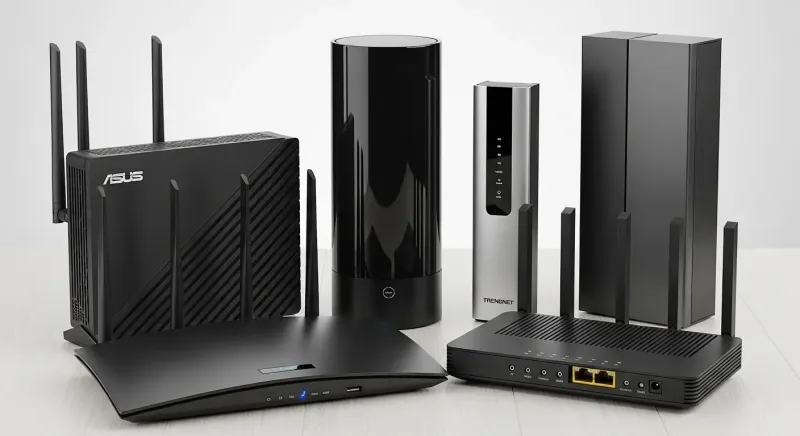
We wanted to find out exactly when and why that happens. So we spent three weeks running five routers — ranging from a $60 budget single-band unit to a $380 tri-band WiFi 6E model — through simulated and live work-from-home conditions during actual business hours. No lab settings. No cherry-picked conditions. Just a home office, a shared household, and a lot of coffee.
What "Peak Hours" Actually Looks Like in a Home Network
Most router reviews test performance in isolation — one device, one connection, clean signal. That's basically useless for remote workers. Peak hours in a work-from-home household look more like this: two simultaneous Zoom or Teams calls on different floors, a large file syncing to Google Drive or Dropbox in the background, a smart TV running Netflix on the main floor, and maybe a Ring doorbell pinging every time a delivery truck rolls past.
That's not a stress test. That's Tuesday.
We built a repeatable test stack to simulate this: two laptops on active video calls (1080p, camera on), one device running a continuous cloud backup of a 6GB folder, one 4K stream on a TV, and two smartphones doing normal background app activity. We ran this stack between 9 AM and 11 AM and again from 2 PM to 4 PM — the two windows where household internet usage nationally tends to spike on weekdays.
Where Budget Routers Cracked First
The $60 dual-band router — a model you'd find prominently displayed at any Walmart or Best Buy — held up surprisingly well for the first 20 minutes of our test stack. Then the cracks showed. Video call quality on the second laptop dropped to 720p and started stuttering. The cloud backup slowed to a crawl. The 4K stream downgraded to 1080p automatically.
The core problem wasn't raw speed — our test ISP plan was a 500 Mbps connection, and the router was technically capable of passing that through. The issue was the router's QoS (Quality of Service) handling, or more accurately, its near-total lack of intelligent traffic prioritization. Every packet was treated equally, which sounds fair until you realize that a video call packet delayed by 40 milliseconds is catastrophic, while a backup file packet delayed by the same amount is completely invisible to the user.
Budget routers also struggled with MU-MIMO handling — the ability to communicate with multiple devices simultaneously rather than in rapid sequence. With six active devices, the cheaper hardware was essentially taking turns, and those turns added up to noticeable lag.
Mid-Range Routers: Better, But Still Surprising Weak Spots
Our two mid-range routers — one WiFi 6 model at $160 and a mesh-capable unit at $210 — performed significantly better across the board. Both maintained stable 1080p video call quality on both laptops throughout the test window. The cloud backup slowed but didn't stall. The 4K stream held.
Where things got interesting was upload performance. Remote work is far more upload-intensive than typical home use. Video calls, file sharing, screen sharing, cloud sync — it's all upstream traffic. Most routers are tuned to prioritize download speeds because that's what matters for streaming and browsing. But for the work-from-home crowd, upload consistency is equally critical.
The $160 WiFi 6 router showed upload instability during our simultaneous video call plus active backup scenario. Not a failure — but enough variability to cause occasional call quality dips. The $210 mesh unit handled it more gracefully, likely due to better traffic shaping on the upstream channel.
The WiFi 6E Model: Overkill or Actually Worth It?
The $380 tri-band WiFi 6E router was the clear performance winner, but the reasons are worth unpacking. The 6 GHz band it adds isn't just faster in theory — it's less congested in practice. In a dense residential neighborhood (our test location had 14 visible WiFi networks on the 2.4 GHz band and 11 on 5 GHz), the 6 GHz band had exactly two networks. For a work-from-home setup in a suburban neighborhood or apartment complex, that interference reduction is genuinely meaningful.
That said, the $380 price tag only makes sense if your work devices actually support WiFi 6E. Most laptops manufactured before 2023 don't. If you're running a three-year-old work laptop, you're paying for a 6 GHz band your device can't touch.
Features That Actually Matter for Remote Workers
After three weeks of testing, here's what we'd actually tell a remote worker shopping for a router:
QoS controls matter more than headline speeds. A router with configurable QoS that lets you prioritize video conferencing traffic will outperform a faster router with no traffic management in real work scenarios. Look for routers that explicitly mention application-layer QoS, not just device-level priority.
Upload performance is underreported. Ask your router manufacturer for upload throughput numbers under load, not just download. Most spec sheets bury this or omit it entirely.
Band steering can work against you. Several routers we tested had aggressive automatic band steering that occasionally moved a video call device from 5 GHz to the more congested 2.4 GHz band. Being able to pin your work laptop to a specific band manually is a useful feature.
Processor and RAM specs aren't just marketing. Routers with faster processors and more RAM handled our multi-device stack noticeably better than underpowered hardware at the same price. It's not glamorous, but it's real.
The Bottleneck Nobody Talks About
Here's the finding that surprised us most: in two of our five router tests, the router itself wasn't the primary bottleneck. The ethernet cable connecting the router to the modem was a Cat 5e cable that the previous homeowner had run through the wall — and it was limiting throughput to around 100 Mbps. The router was fine. The cable was the problem.
If you're working from home and experiencing performance issues, before you spend money on a new router, check what's connecting your modem to your router. Check whether your work laptop is on 5 GHz or 2.4 GHz. Check whether your ISP plan's upload speed is actually what you're paying for. Routers take a lot of blame they don't always deserve.
But when the router is the problem — and sometimes it genuinely is — knowing exactly where it breaks under real workday pressure is the only way to make a smart upgrade decision. That's what we're here for.