Manufacturer Setup Tips vs. Our Real-World Testing: We Followed Both Playbooks — One Fell Apart at 7 PM

Every major router brand has a setup guide. Some come as printed inserts in the box. Others live as slick YouTube videos with upbeat music and animated signal waves. They all share one thing in common: they were written in a controlled environment by someone who has never seen your house.
We wanted to know how much that actually matters. So we picked four routers — two mid-range units and two flagships — and set each one up twice: once following the manufacturer's official guidance as closely as possible, and once using the placement and configuration methods we've developed through our own real-world testing. Then we measured performance across the day, with particular attention to what happens between 6 and 9 PM when every device in the house wakes up simultaneously.
The results were educational. And a little embarrassing for a few marketing departments.
What Manufacturer Guides Actually Tell You
Before we get into the numbers, it's worth summarizing what the official guidance typically recommends, because it's not wrong exactly — it's just incomplete.
Common manufacturer recommendations across the four devices we tested included: place the router in a "central location," keep it elevated off the floor, point antennas vertically, avoid placing it near microwaves or cordless phones, and use the app's automatic channel selection. One manufacturer's video specifically recommended a bookshelf in a living room as the ideal placement spot. Another suggested leaving the router in "auto" mode for everything and letting the firmware handle optimization.
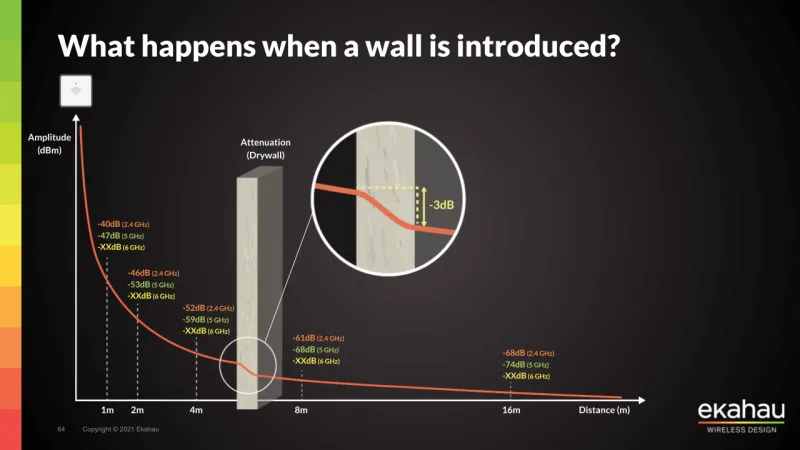
None of this is bad advice for an idealized home. The problem is that American homes are not idealized. They have concrete foundations, metal HVAC ducts, plaster walls from the 1960s, and the cable outlet is almost always in the worst possible spot.
Home One: The Open-Plan Ranch House
This 1,800 sq ft single-story home in the Dallas suburbs was the friendliest environment for manufacturer guidance. Open floor plan, drywall construction, cable outlet near the center of the house. The recommended setup — router on a shelf in the living room, antennas vertical, auto channel — actually performed reasonably well here.
But "reasonably well" isn't the same as optimal. When we reconfigured using our tested methodology — which included manually selecting a less-congested channel after scanning the neighborhood's wireless environment, tilting one antenna at 45 degrees to improve horizontal propagation, and disabling band steering in favor of manual band assignment for stationary high-demand devices — we picked up an average of 18% throughput improvement across the house and a 22% reduction in latency during the evening peak.
The manufacturer's auto channel selection had put both routers we tested in this home on channel 6 — the same channel as four of the seven neighboring networks we detected. The firmware apparently decided channel 6 was fine despite the congestion. It was not fine.
Home Two: The Two-Story Colonial
This is where manufacturer guidance started showing its limits. The 2,600 sq ft home in suburban Atlanta had its cable outlet in a first-floor office at the far end of the house — about as far from "central" as you can get. The manufacturer guide said to place the router centrally, but the cable outlet placement made that impossible without running new coax, which nobody wants to do.
Following the official guidance as literally as possible, we placed the router on a desk in the office with antennas vertical. The second floor was immediately problematic — we were getting 45–60 Mbps in the upstairs bedrooms on a 600 Mbps plan. The manufacturer's app flagged nothing wrong and suggested the setup was optimal.
Our reconfiguration involved repositioning the router to the highest point in the office (top of a bookshelf near the doorway rather than on the desk), angling one antenna horizontally to direct signal upward through the floor, and enabling a more aggressive roaming threshold so devices on the second floor would seek better connections sooner. We also manually adjusted transmit power, which the manufacturer guide never mentions as an option despite it being available in the advanced settings.
Result: upstairs speeds improved to 180–220 Mbps. That's not a small difference. That's the difference between a functional home office and a frustrating one.
Home Three: The Apartment With Interference Problems
A 950 sq ft apartment in a Chicago high-rise building is a nightmare scenario for any router. Dense neighboring networks, concrete and steel construction, and a cable outlet beside the front door. Manufacturer guidance suggested placing the router near the TV for "convenience" — which in this layout meant a corner of the living room with a concrete exterior wall on two sides.
The auto channel selection picked channel 36 on 5 GHz — a channel that three neighboring networks were also hammering. At 7 PM on a weeknight, throughput dropped to 89 Mbps and latency spiked to over 200ms. The router's app showed green status across the board.
After scanning with a dedicated WiFi analyzer app and manually selecting a cleaner channel (channel 149 had significantly less competition in this building), repositioning the router away from the exterior walls to a more central interior location on a small shelf, and disabling the 2.4 GHz band for devices that didn't need it, evening performance stabilized at 280–310 Mbps with latency under 40ms. Same router. Same ISP. Different configuration.
Home Four: The Newer Construction Suburban House
This 3,100 sq ft home in Phoenix was built in 2019 with modern construction, and it was the one environment where manufacturer guidance performed closest to our optimized setup — within about 9% on average throughput. Newer homes with open layouts and consistent drywall construction are genuinely closer to what these guides are designed for.
Even here, though, the evening peak told a different story. Between 7 and 8:30 PM, the manufacturer-configured setup saw throughput drop by 31% as neighboring networks ramped up activity. Our manually-tuned configuration dropped only 14% during the same window — not because we'd done anything magical, but because we'd chosen channels with less neighborhood competition at the outset rather than letting the firmware auto-select during a quiet morning when the airwaves looked clean.
The Pattern That Kept Repeating
Across all four homes, the same themes emerged. Manufacturer guidance performs adequately in ideal conditions and fails proportionally as conditions get worse. Auto channel selection is optimistic by design — it picks what looks good at setup time, not what holds up under real neighborhood load. And the settings that matter most — channel selection, transmit power, roaming thresholds, band steering behavior — are almost never mentioned in the official guides because they require context that a general tutorial can't provide.
The biggest single win we found, consistently across all four homes, was manual channel selection based on a real-time scan of the local wireless environment. It costs nothing, takes ten minutes, and in three of our four test homes it was the single biggest performance lever available.
What This Means for Your Setup
Manufacturer guides aren't useless — they're a reasonable starting point for a first-time setup. But if you stop there, you're leaving performance on the table and, in congested environments, you may be actively hurting yourself.
Before you assume your router is the problem, spend ten minutes with a free WiFi analyzer app, check what channels your neighbors are using, and pick something less crowded. That one step, which appears in exactly zero manufacturer setup videos we reviewed, made more difference than any antenna angle or shelf height recommendation we tested.